
Get started with the Songhunt music player
Installation
Step 1 - Go to - https://www.overwolf.com/app/mypart-songhunt and click “Download on Overwolf”


Step 2 - Choose your preferred language for the installer and click next.
Step 3 - Check the boxes if you want to add shortcuts and click next (only if you are over 18 years old).


Step 4 - Wait for the installment to finish, you can see the progress at the bottom.
Step 5 - Once the app is successfully installed, click the launch button.


Step 6 - Now you can open the Songhunt app. The first launch shows two options:
1. 'Launch automatically with games' which means that when a game launches, the app opens automatically
2. 'Launch with Overwolf' means that when you launch Overwolf it will open the app.
Then click the “Get Started” button on the first launch page. Go ahead and explore the app!

Step 7 - After clicking the “Get Started” you will get this popup message.
If you are a streamer, choose the Streamer Subscription for licensed music that is cleared for live-streaming and content creation. You can reach out to us for a discounted subscription price at my_art@mypart.com

Adaptive Music
This is where the magic happens- the adaptive mode will detect your game, and uses AI to analyze what is happening on the screen, to give you the perfect music for your game.
Step 11. Set up Adaptive Music by opening the Adaptive page and make sure Adaptive Music is turned on.
You will get 30 minutes of Adaptive Mode before registering - after you SUBSCRIBE it will be unlimited.

Adaptive Settings in detail:
You can choose between two 'Capture Triggers': Choose how often the AI analyzes your gameplay and matches music to it. With the timer you can pick how often the AI analyzes your game, from every 3, 5 or 10 minutes, or with 'Song Progress', the AI analyzes your game when the current song is about to end, so the next track is ready right on time.
Playback Behavior: Seamless means that when your current song finishes playing, the new matched playlist starts playing. This also happens when you click Next or Previous song.
Immediate means the current song stops and the new matched music starts playing right away.


Step 1 - After you enabled adaptive mode you can go to your game and click the big red button on the in-game player


Step 2 - this is your in-game-player. this where you control your music playing during the gameYou can either click the buttons or use the keyboard hotkeys.
The hotkeys are written both in the app and when you click the small icon at the top right of the player.


If a game already has built-in shortcuts for these keys and they collide - you can customize the player hotkey yourself!
You can also change the color theme of your player by clicking the little question mark icon on the top -> then click the “Themes” button at the top.
This is what it looks like with a different theme ---->


Step 3 [Optional] Control & Personalization
Want to personalize the experience even further?At any point, you can also type in any text prompt to express your musical preferences: utilize smart tags, such as a lyrical theme, writing style, instruments, and mood, search by song title or artist name to uncover similar tracks, and build a fully personalized experience.
At any point- if you accidentally minimize the player or it disappears you can just go back to the app and click the “show player” button at the top right

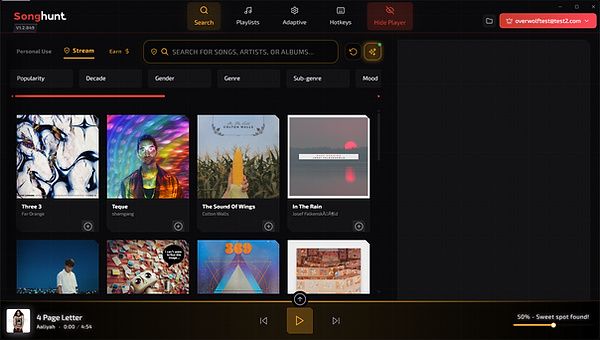

For gamers who stream, music licensing has long been a challenge. Using music can result in muted VODs, copyright claims, or takedown notices. We offer a licensed catalog directly with the Songhunt application, so streamers can focus on their gameplay while enjoying a dynamic soundtrack tailored to it. Just choose the “Stream” Tab and voila! All music selected by Adaptive Music is now fully streamable.
Manual Personalization

Step 1 - on the main search page, you can search for your favourite songs, artists and albums, or discover new music by trying out all the filters!
The player is at the bottom of the page, where you can play, pause and skip songs, and also control the volume.
Step 2 - While listening to music on the app, you can choose to minimize the video by clicking the small arrow above the play button.


You can see the minimized player in the bottom left corner, You can drag it around and place it where ever on the screen, if you want to.
Step 3 - You can explore our ready made playlists by clicking on the “Playlists” button at the top. They will open up on the left side of the screen.

